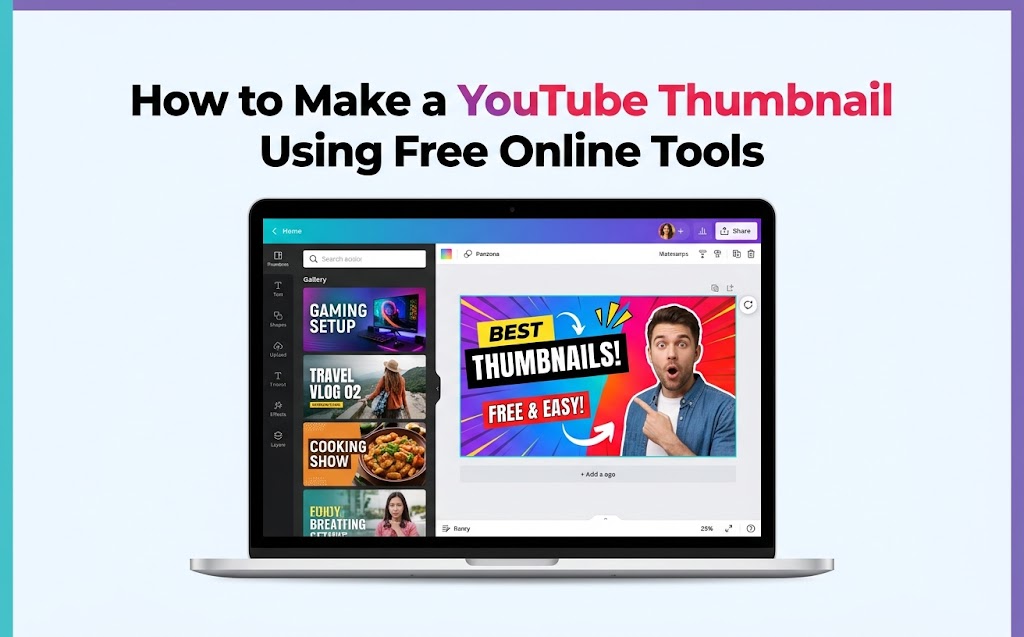
A good YouTube thumbnail helps viewers understand what a video is about before they click. You do not need expensive graphic design software to create one. With free online thumbnail makers, you can add images, bold text, colors, shapes, and branding directly in your browser.
In this guide, you will learn how to make a YouTube thumbnail using free online tools, compare beginner-friendly options, choose the right dimensions, and upload your finished design to YouTube.
What Is a YouTube Thumbnail?
A YouTube thumbnail is the preview image displayed beside or above a video’s title in search results, recommendations, and other parts of YouTube. It gives viewers a quick visual idea of what to expect from the video.
A useful thumbnail usually has one clear subject, readable text, good contrast, and a design that matches the actual video. It should attract attention without misleading viewers.
Best Free Online Tools to Make YouTube Thumbnails
Several browser-based tools let you create thumbnails without installing professional design software. Free plans may have limits on templates, stock images, AI features, or other premium assets, so check the available options before downloading.
1. Canva YouTube Thumbnail Maker
Canva YouTube Thumbnail Maker is a convenient choice for beginners who want to start with a template or create a design from scratch. You can add photos, text, shapes, illustrations, and other design elements.
Best for: Beginners, vloggers, educational channels, gaming videos, and creators who want to reuse a consistent design.
- Choose a YouTube thumbnail template.
- Replace the sample image and headline with your own content.
- Adjust text size, colors, alignment, and contrast.
- Check whether selected images and elements are available on your free plan.
- Download the finished design in a suitable image format.
2. Adobe Express
Adobe Express YouTube Thumbnail Maker offers templates and editing tools for creating custom thumbnails online. You can upload your own images, add text, adjust the design, and apply consistent branding.
Best for: Creators who want ready-made layouts, branded designs, and straightforward image editing.
Adobe Express has a free plan, but individual assets and features may have different access requirements. Review the labels shown in the editor before using premium content.
3. Photopea
Photopea is a browser-based image editor that provides a more advanced editing workflow. It can be useful when you want to work with layers, cut out a subject, combine multiple images, or fine-tune a composition.
Best for: Users who want more control over image editing without installing desktop software.
Photopea may take longer to learn than a template-based thumbnail maker. Its availability, advertising, and particular features can change, so check the live editor before starting a project.
4. Fotor
Fotor offers online photo editing and design features that can help with thumbnail creation. Depending on the tools and plan available to you, you may be able to use templates, image adjustments, and AI-assisted features.
Best for: Creators who want to explore image enhancement and quick design options.
Check whether your chosen features, assets, and final export are free before investing time in a design. Free access does not necessarily include every feature.
What Is the Correct YouTube Thumbnail Size?
For a regular YouTube video, use a landscape image with a 16:9 aspect ratio. YouTube’s current help guidance recommends 3840 × 2160 pixels for video thumbnails, with a minimum width of 640 pixels. A 1280 × 720 canvas is a practical 16:9 size offered by many thumbnail templates.
- Aspect ratio: 16:9 for regular videos.
- Recommended resolution: 3840 × 2160 pixels for regular video thumbnails, according to YouTube’s current guidance.
- Minimum width: 640 pixels for regular video thumbnails.
- Image formats: JPG or PNG are suitable choices.
- File size: YouTube lists a maximum of 2 MB for video thumbnail uploads from mobile and 50 MB from desktop.
For a YouTube Short, the recommended thumbnail shape is vertical, with a 9:16 aspect ratio. YouTube recommends 2160 × 3840 pixels for Shorts thumbnails. Check the official YouTube thumbnail guidelines for the latest requirements and upload instructions.
How to Make a YouTube Thumbnail Step by Step
Step 1: Choose a Free Thumbnail Maker
Start with a tool that suits your experience. Canva and Adobe Express are useful for template-based designs, while Photopea offers more hands-on image editing. Open your chosen tool in a browser and select a YouTube thumbnail template or create a custom canvas.
Step 2: Decide on the Main Message
Before adding graphics, decide what viewers should understand at a glance. Your thumbnail should communicate the main idea of the video rather than repeat the entire video title.
For example, a video titled “How to Edit Videos on Your Phone” could use a short thumbnail headline such as “EDIT ON MOBILE” with a clear image of a phone and editing interface.
Step 3: Add a Clear Main Image
Use a relevant photo, a still from your video, a product image you have permission to use, or a suitable graphic. Make the main subject large enough to recognize when the thumbnail is displayed on a small screen.
Avoid filling every part of the design with small images. One clear focal point is often easier to understand than a crowded collage.
Step 4: Add Short, Readable Text
Use a brief headline that supports the video topic. Three to five words can be a useful starting point, although the ideal amount depends on the design.
- Choose a bold, readable font.
- Use strong contrast between the text and background.
- Avoid long sentences and tiny text.
- Keep important words away from the edges.
- Proofread spelling before exporting.
Step 5: Choose Colors and Branding
Use colors that make the main subject and headline easy to distinguish. You can also repeat a small set of colors, fonts, or logo placements across your channel to create a recognizable style.
Consistency is useful, but every thumbnail should still reflect the specific video. Avoid making all your videos look identical if viewers cannot tell their subjects apart.
Step 6: Preview the Thumbnail at a Small Size
Reduce the design’s size on your screen or zoom out in the editor. Check whether the subject and headline remain easy to understand. If the design becomes difficult to read, remove unnecessary details, enlarge the main text, or simplify the background.
Also make sure the thumbnail accurately represents the video. A misleading image may attract attention initially but can disappoint viewers.
Step 7: Download the Image
Export your finished thumbnail as JPG or PNG. Choose an appropriate resolution and confirm the file size meets YouTube’s current upload limit for the device you will use.
Open the downloaded file before uploading it. This quick check helps you catch unexpected cropping, missing elements, or spelling mistakes.
How to Upload a Custom Thumbnail to YouTube
After creating the image, follow these steps to add it to a regular YouTube video:
- Open YouTube Studio and sign in.
- Select Content from the left-hand menu.
- Open the video you want to edit.
- Find the thumbnail section in the video details.
- Select the option to upload a custom thumbnail.
- Choose your saved image and wait for it to upload.
- Click Save.
YouTube requires account verification for custom thumbnail uploads. The available controls can differ for regular videos and Shorts. YouTube currently documents adding custom Shorts thumbnails through Studio on a computer. If you cannot find the option, consult the official thumbnail help page.
Tips for Designing Better YouTube Thumbnails
- Focus on one idea: Make the subject and purpose clear without requiring viewers to study the image.
- Use contrast: Separate the headline and main subject from the background.
- Keep text readable: Check the design on a phone-sized preview.
- Use relevant images: Do not promise something the video does not deliver.
- Leave breathing room: Keep essential text and objects away from the edges.
- Use assets responsibly: Check the licence and usage terms for photos, graphics, fonts, and other elements.
- Test different designs: Where YouTube’s testing features are available to your channel, compare meaningfully different thumbnail options instead of assuming one style always wins.
Common YouTube Thumbnail Mistakes to Avoid
- Using blurry or low-quality images.
- Adding too much text or too many graphic elements.
- Choosing text colors that blend into the background.
- Using a thumbnail that does not match the video.
- Ignoring the correct aspect ratio.
- Downloading premium assets without checking their usage requirements.
- Assuming an attractive thumbnail alone guarantees views or a high click-through rate.
Frequently Asked Questions
How can I make a YouTube thumbnail for free?
Open a free online design tool such as Canva or Adobe Express, select a thumbnail template, add a relevant image and short headline, and download the result. Check that the assets and export options you use are included in the free plan.
Which free online tool is best for YouTube thumbnails?
Canva and Adobe Express are useful starting points for beginners who prefer templates. Photopea is worth considering when you need more detailed image editing. The best choice depends on your workflow and whether the features you need are available for free.
Can I make a YouTube thumbnail without Photoshop?
Yes. Browser-based tools such as Canva, Adobe Express, Photopea, and Fotor offer ways to create or edit thumbnail designs without installing Photoshop.
What size should a YouTube thumbnail be?
YouTube currently recommends 3840 × 2160 pixels for regular video thumbnails, with a 16:9 aspect ratio and a minimum width of 640 pixels. Many online editors also offer 1280 × 720 templates. Check YouTube’s official guidance for current specifications.
Can I use AI to create a YouTube thumbnail?
Some free online ai image design tools offer AI-assisted image or design features. You can use them to develop a concept or background, then add and proofread the final text in the editor. Free usage and export options vary by tool and plan.
Can I upload a custom thumbnail for YouTube Shorts?
YouTube supports custom Shorts thumbnail selection through YouTube Studio on a computer. Shorts use a vertical 9:16 format, so create a design that suits the video and check YouTube’s current instructions before uploading.
Do attractive thumbnails guarantee more views?
No. A clear and relevant thumbnail can help viewers understand a video, but views also depend on factors such as the topic, title, audience interest, and viewer satisfaction. Review your channel analytics to learn what works for your audience.
Conclusion
You can make a YouTube thumbnail using free online tools without professional design software. Choose a suitable editor, use a clear image, add a short headline, check the design at a small size, and export it in the correct format.
Start with Canva or Adobe Express for a template-based workflow, or try Photopea if you want more editing control. You can also explore the FunUploads free AI tools directory for more online tools that may help with your creative workflow.
About the Author