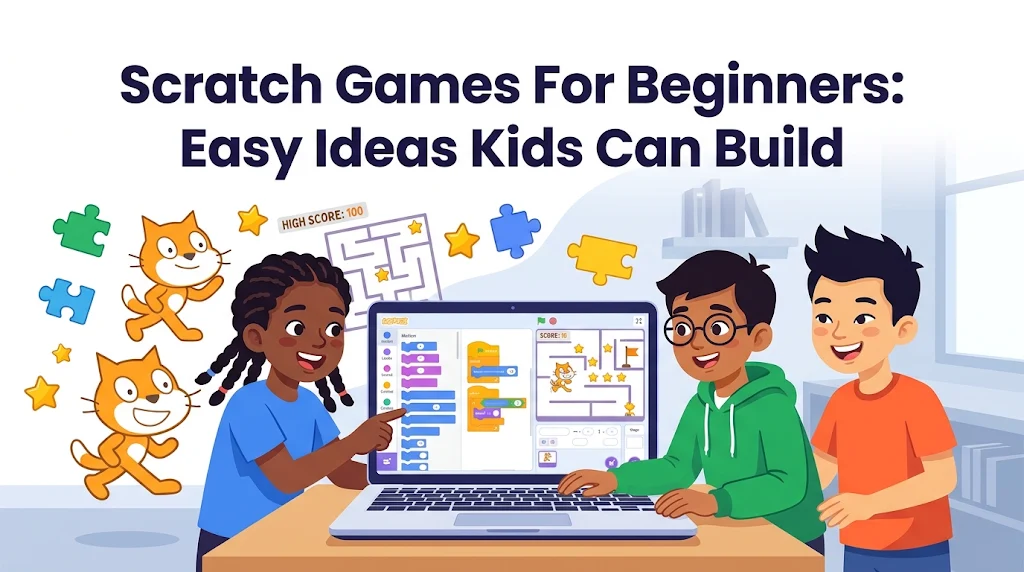
Scratch games for beginners are the easiest way for kids to learn how games really work. Scratch is a free, block-based coding tool where you snap colored blocks together instead of typing code. In this guide you get 12 easy game ideas, the blocks each one uses, a simple age guide and a full 30-minute first project you can follow even if you have never coded before.
12 Ideas
Easy to start
100% Free
Browser or offline
Ages 8-16
Main age range
30 Minutes
First game
No Typing
Drag and drop blocks
Table Of Contents
- Scratch Games At A Glance (Who, What, When, Where, Why, How)
- Before You Start: What You Need
- Which Scratch Games Fit Which Age?
- 12 Easy Scratch Game Ideas Kids Can Build
- Build Your First Game In 30 Minutes (Catch The Falling Fruit)
- How To Make Your Scratch Game Better
- Safety Tips For Parents And Teachers
- Common Scratch Problems And Easy Fixes
- Where To Find More Scratch Game Ideas
- Frequently Asked Questions
- Conclusion
1. Scratch Games At A Glance (Who, What, When, Where, Why, How)
| Question | Answer |
|---|---|
| Who | Kids, students, parents, teachers and complete beginners who have never coded. |
| What | Games made in Scratch, a free visual coding tool from the MIT Media Lab, using drag-and-drop blocks. |
| When | Weekends, school holidays, computer class or any free hour. A first game takes about 30 minutes. |
| Where | In a web browser at scratch.mit.edu, or in the offline editor on a laptop or PC. |
| Why | Kids learn logic, problem-solving and creativity while making something they can actually play. |
| How | Pick a small idea, add a sprite, snap on event, motion and variable blocks, then test after every change. |
2. Before You Start: What You Need
- A computer or laptop. Scratch works best with a keyboard and mouse. It is light enough to run on most low-cost laptops.
- A modern browser such as Chrome, Edge or Firefox, or the free offline editor if your internet is slow.
- A free account (optional). You can start without one, but an account lets you save projects online and share them.
- Time. Plan for 30 to 45 minutes for the first game, and test often.
Learn these four words first. They appear in every Scratch game:
| Word | What It Means |
|---|---|
| Sprite | A character or object in your game, such as a cat, a ball or a basket |
| Stage | The screen where the game happens |
| Backdrop | The background picture of the stage |
| Variable | A box that stores a number, such as score or lives |
3. Which Scratch Games Fit Which Age?
| Age | Best Starting Point | Good First Games |
|---|---|---|
| 5-7 | ScratchJr on a tablet, with a parent | Moving a character, simple animations |
| 8-10 | Scratch with an adult nearby | Balloon pop clicker, catching game, whack-a-mole |
| 11-13 | Scratch on your own | Maze, quiz, endless runner, space dodger |
| 14+ | Scratch with bigger ideas | Two-player race, treasure hunt with levels |
4. 12 Easy Scratch Game Ideas Kids Can Build
Each idea below lists the blocks you will use and roughly how long it takes. Start at the top and work down as you get more confident.
A basket moves left and right while fruit falls from the top. Catch fruit to score, miss it and lose a life.
Blocks: when green flag clicked, forever, if key pressed, change x by, change y by, touching, change score by 1.
Balloons float up and the player clicks to pop as many as possible before time runs out.
Blocks: when this sprite clicked, hide, show, pick random, timer, change score by 1.
A mole pops up at random holes and the player clicks it fast.
Blocks: go to random position, wait, when this sprite clicked, set score, forever.
Move a character from the start to the finish without touching the walls.
Blocks: arrow key movement, touching color, go to x y, say, broadcast.
The game asks a multiplication question and checks the player’s answer. Great for homework practice.
Blocks: ask and wait, answer, if else, operators (multiply, equals), change score by 1.
A cat jumps over obstacles that slide in from the right. Hit one and the game ends.
Blocks: when space key pressed, repeat, change y by, glide, touching, stop all.
A rocket moves around the screen and dodges asteroids that fall faster as the game goes on.
Blocks: create clone of, when I start as a clone, pick random, change speed variable.
A ball bounces between a paddle and the wall. Miss it and you lose.
Blocks: move steps, if on edge bounce, touching paddle, turn, change score by 1.
Feed a pet before its hunger bar runs out. Click food items to keep it happy.
Blocks: variables (hunger), change hunger by, when I receive, switch costume.
Explore two or three rooms, collect keys and open a chest at the end.
Blocks: switch backdrop, broadcast, when I receive, show, hide, variables (keys).
Watch a color pattern, then repeat it in the same order.
Blocks: lists, add to list, item of, repeat, wait, if else.
Two friends race to the finish line, one using arrow keys and the other using W, A, S and D.
Blocks: when key pressed (two sets), change x by, touching, broadcast winner.
5. Build Your First Game In 30 Minutes (Catch The Falling Fruit)
This is the best first project because it uses the three skills every game needs: movement, touching and score. Follow the steps in order and click the green flag to test after each one.
Step 1: Set Up The Sprites
- Open Scratch and click Create to start a new project.
- Delete the cat sprite, then add a Bowl or Basket sprite and an Apple sprite from the library.
- Choose a backdrop such as Blue Sky and shrink the sprites if they look too big.
- Go to Variables and make two variables: score and lives.
Step 2: Make The Basket Move
Click the Basket sprite and build this script:
when green flag clicked
go to x: 0 y: -140
forever
  if <key [right arrow] pressed?> then
    change x by 10
  end
  if <key [left arrow] pressed?> then
    change x by -10
  end
end
Step 3: Make The Apple Fall
Click the Apple sprite and build this script:
when green flag clicked
set [score] to 0
set [lives] to 3
go to x: (pick random -200 to 200) y: 170
forever
  change y by -5
  if <touching [Basket]?> then
    change [score] by 1
    go to x: (pick random -200 to 200) y: 170
  end
  if <(y position) < -150> then
    change [lives] by -1
    go to x: (pick random -200 to 200) y: 170
  end
  if <(lives) = 0> then
    stop [all]
  end
end
Step 4: Test And Improve
- Click the green flag and catch a few apples. Does the score go up?
- Let a few apples fall past the basket. Do the lives go down?
- Make the apple faster by changing -5 to -7, or add a second fruit sprite.
- Add a Pop sound when the basket catches an apple.
6. How To Make Your Scratch Game Better
Once your first game works, add one new feature at a time. This keeps bugs easy to find.
| Upgrade | How To Add It |
|---|---|
| Timer | Use the timer block from Sensing and end the game at 30 or 60 seconds |
| Levels | Make a level variable and make objects fall faster each time the score reaches a target |
| Bad items | Add a second sprite, such as a rock, that takes away a life when caught |
| Game over screen | Use broadcast game over and a message sprite that says the final score |
| Sound and music | Pick sounds from Scratch’s library or record your own |
| Clones | Use create clone of to drop many objects without copying sprites |
7. Safety Tips For Parents And Teachers
- Sit together for the first sessions. It is a great chance to talk about how the game works.
- Be careful with the online community. Shared projects can get comments, so supervise younger children.
- Keep personal details private. Do not put full names, school names or phone numbers in a username or project notes.
- Use original or credited art and sounds. Do not upload copyrighted characters or music.
- Keep games child-friendly. Use cartoon targets, not realistic violence.
- Take screen breaks. A good rhythm is 30 to 45 minutes of coding, then a break.
8. Common Scratch Problems And Easy Fixes
| Problem | Likely Cause | Fix |
|---|---|---|
| Nothing happens when I click the flag | No starting block on the sprite | Add when green flag clicked to the top of the script |
| The sprite only moves once | Blocks are not inside a forever loop | Put the key and move blocks inside forever |
| The score never resets | No set score to 0 at the start | Add set score to 0 after the green flag block |
| The score jumps by 5 or 10 at once | The sprite stays touching while the loop repeats | Move the sprite away right after it is touched |
| Touching does not work | Wrong sprite name in the touching block | Pick the right sprite from the touching dropdown |
| The code is on the wrong sprite | Blocks were dropped on a different sprite | Drag the script onto the right sprite in the sprite list |
9. Where To Find More Scratch Game Ideas
Once you have finished two or three projects from this list, the next step is bigger ideas such as platformers and rhythm-style games. If you want more inspiration, including a Geometry Dash style project, read this ranked list of scratch games and easy game ideas. Scratch also has an official ideas and tutorials section on its site, and you can look at other creators’ projects with the “see inside” button, then remix them with credit.
Looking for more learning tools? See our guide to the best free AI tools for students in Pakistan, or browse more posts in the Games and Education categories.
Frequently Asked Questions
1. What are the best Scratch games for beginners?
The easiest Scratch games for beginners are a catching game, a balloon pop clicker, a whack-a-mole game, a maze and a quiz. They use only a few blocks, have simple rules and teach movement, scoring and collision detection.
2. Is Scratch free to use?
Yes. Scratch is a free visual programming platform from the MIT Media Lab. You can code in a web browser at scratch.mit.edu without paying, and an offline editor is also available.
3. What age is Scratch for?
Scratch is designed mainly for ages 8 to 16. Younger children, around 5 to 7, can start with ScratchJr on a tablet. Younger kids can also use Scratch with help from a parent or teacher.
4. Do I need to know how to code to make a Scratch game?
No. Scratch uses colored blocks that snap together, so you do not type code. You learn real ideas such as loops, conditions and variables by dragging and testing blocks.
5. How long does it take to make a simple Scratch game?
A first game such as a catching game or balloon clicker usually takes 20 to 45 minutes. A maze, a quiz or a runner game can take one to two hours, depending on how many levels and extras you add.
6. Do I need an account to use Scratch?
You can start building in the browser without an account, but you need a free account to save projects online and share them. With the offline editor you can save projects as files on your computer.
7. Can I use Scratch without internet?
Yes. Scratch has an offline editor that you download and install. It is useful at school or in places with a slow connection, because you can build and save projects on your own device.
8. How do I add a score to a Scratch game?
Open the Variables category, make a variable called score, use set score to 0 when the green flag is clicked, and use change score by 1 each time the player catches, clicks or hits something.
9. Why does my Scratch sprite not move?
The most common causes are forgetting a starting block such as when green flag clicked, putting the move blocks outside a forever loop, or having the code attached to the wrong sprite. Click the sprite, check its code area and test again.
10. Is it safe for kids to share Scratch projects online?
Scratch has an online community with comments, so parents and teachers should supervise younger children. Keep usernames private, never share personal details in project notes, and use your own artwork or properly credited assets.
11. What should I build after my first Scratch game?
Add levels, a timer, lives and sound effects to the same game first. Then try a bigger idea such as a platformer, an endless runner or a two-player game that uses clones and broadcasts.
Conclusion
Scratch games for beginners are a fun, free way for kids to learn how games work and to practice problem-solving. Start with the catching game in section 5, add a timer and levels, then pick another idea from the list. The more you test and tweak, the faster you will learn. Share your project with a friend or teacher and ask them to try to beat your score.
MORE FUN ON FUN UPLOADS
Explore more guides, tools and entertainment in the Neal Fun and Ai Tools Education sections of the Fun Uploads blog.
About the Author